[Service]
Environment="JENKINS_LOG=%L/jenkins/jenkins.log"Viewing logs
Table of Contents
Logs on the system
When running jenkins.war manually with java -jar jenkins.war, all logging information by default is output to standard out.
Many Jenkins native packages modify this behavior to ensure logging information is output in a more conventional location for the platform.
Linux (rpm and deb)
By default logs can be viewed by running journalctl -u jenkins.service.
To customize the log location, run systemctl edit jenkins and add the following:
Windows (msi)
By default, logs should be at %JENKINS_HOME%/jenkins.out and %JENKINS_HOME%/jenkins.err, unless customized in %JENKINS_HOME%/jenkins.xml.
macOS
Log files should be at /var/log/jenkins/jenkins.log, unless customized in org.jenkins-ci.plist.
Logs in Jenkins
Jenkins uses java.util.logging for logging.
The java.util.logging system by default sends every log above INFO to stdout.
Jenkins is equipped with a GUI for configuring/collecting/reporting log records of your choosing. This page shows you how to do this.
First, select the "Logs" from the "Manage Jenkins" page:
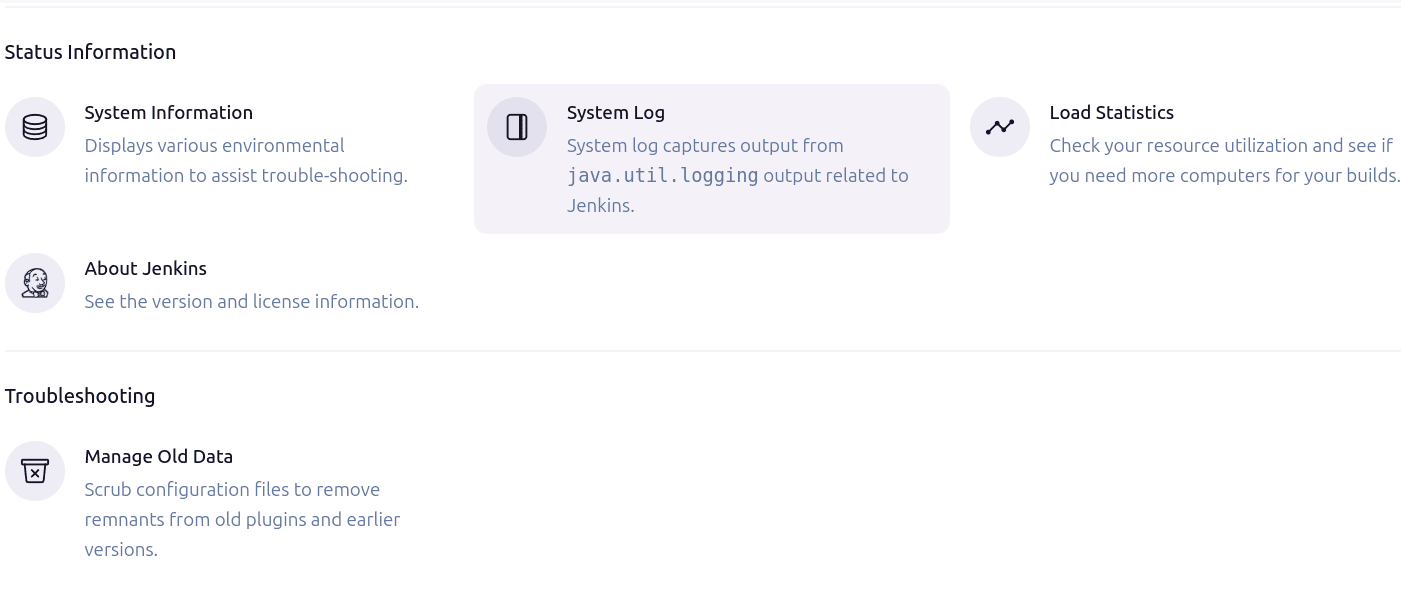
From there, you can create a custom log recorder, which helps you group relevant logs together while filtering out the noise.

Provide a name for your log recorder.

You’ll be then asked to configure loggers and their levels whose output you’d like to collect. Depending on which part of Jenkins you monitor, you’ll need to specify different loggers. Tell us the symptom of your problem in the users list and we should be able to tell you where you need to look. Also, this is really just a wrapper around the java.util.logging package, so if you program in Java, you might be able to guess where to look.
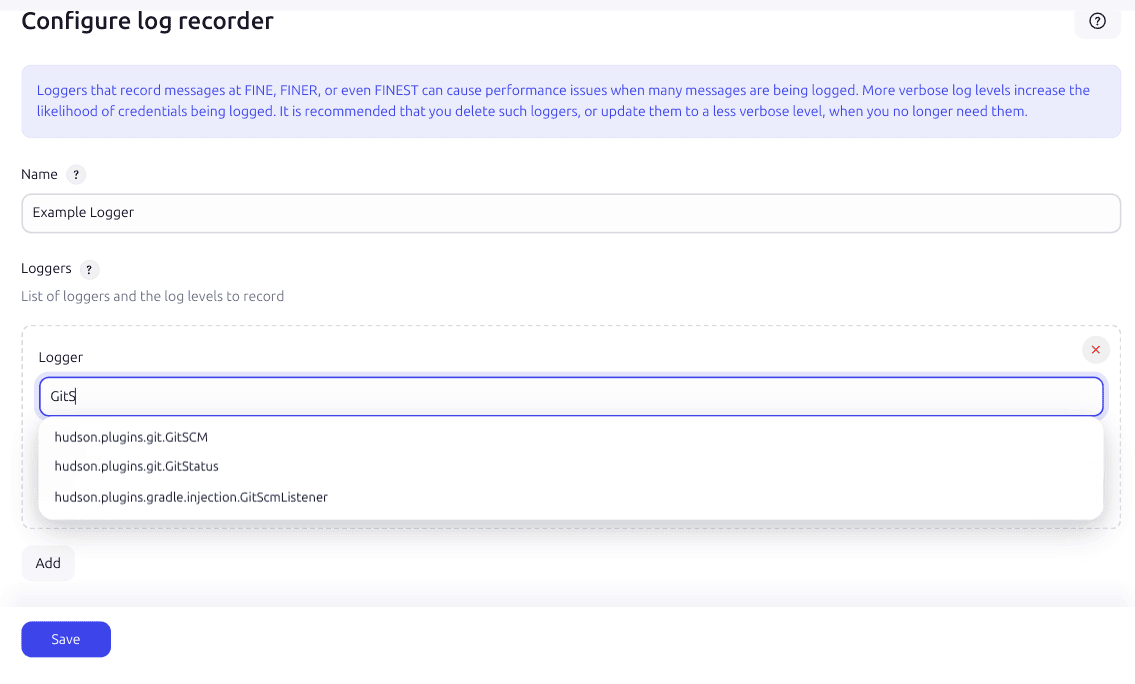
Once the set up is complete, Jenkins will start collecting data. The collected logs are available from the web UI.
Making custom logs available outside of the web UI
The simplest solution is to install the Support Core Plugin, which causes custom logs to be written to disk automatically.
Debug logging in Jenkins
-
Create a file
logging.properties -
Define the logging levels and a
ConsoleHandler -
Pass this file to the JVM by adding the system property
-Djava.util.logging.config.file=<pathTo>/logging.properties.
An example logging.properties is included below.
| For a normal production environment the default level is INFO, it is not advised to have debug log in production. |
handlers = java.util.logging.ConsoleHandler

# see https://docs.oracle.com/en/java/javase/17/docs/api/java.logging/java/util/logging/SimpleFormatter.html
java.util.logging.SimpleFormatter.format = [%1$tF %1$tT][%4$-6s][%2$s] %5$s %6$s %n

# Keep this level to ALL or FINEST or it will be filtered before applying other levels
java.util.logging.ConsoleHandler.level = ALL

# Default level
.level= INFO

# High verbosity for a dedicated package com.myplugin.*
com.myplugin.level = ALL
HTTP access logging
Jenkins uses the embedded Winstone servlet engine by default to handle incoming HTTP/HTTPS requests. To log details of each HTTP request (such as client IP address, timestamp, request URL, HTTP status code, and user agent), you can enable Winstone’s access logger using command line options.
The access logger writes standard NCSA access logs, making it straightforward to analyze traffic with tools like Logstash, GoAccess, or Graylog.
Enabling access logging
Access logging is configured by passing Winstone command line arguments to the Jenkins runtime:
--accessLoggerClassName=winstone.accesslog.SimpleAccessLogger-
Specifies the logger implementation class.
--simpleAccessLogger.format=combined-
Specifies the log format. Supported formats include
combined(the default recommended NCSA combined log format including referer and user-agent headers) andcommon(NCSA common log format). --simpleAccessLogger.file=<path>-
Specifies the destination file path for access log entries.
Linux (systemd)
On modern Linux distributions using systemd (Ubuntu, Debian, Red Hat, AlmaLinux, Rocky Linux):
-
Run
systemctl edit jenkinsto create a service override. -
Add the access logger arguments to the
JENKINS_OPTSenvironment variable. AnEnvironment="JENKINS_OPTS=…"line replaces any existing value, so if your service already setsJENKINS_OPTS(for example,--prefix=/jenkins), append the access logger arguments to that existing value rather than adding a separate line:[Service] Environment="JENKINS_OPTS=--accessLoggerClassName=winstone.accesslog.SimpleAccessLogger --simpleAccessLogger.format=combined --simpleAccessLogger.file=/var/log/jenkins/access.log" -
Restart the Jenkins service:
sudo systemctl restart jenkins
Linux log rotation
To automatically rotate access logs alongside system logs, edit /etc/logrotate.d/jenkins to include all .log files.
Because the access logger keeps the log file open, use copytruncate (as the official Jenkins packages do) so that the logs can be rotated without restarting Jenkins:
/var/log/jenkins/*.log {
    weekly
    copytruncate
    missingok
    rotate 52
    compress
    delaycompress
    notifempty
}
Windows service (jenkins.xml)
If running Jenkins as a Windows service:
-
Open the
jenkins.xmlfile in the Jenkins installation directory (for example,%INSTALL_PATH%\jenkins\jenkins.xml) in a text editor with administrative privileges. -
Locate the
<arguments>element inside the<service>element and append the access logger arguments to the end of its existing value, separated by a space. Keep the other arguments and elements as they are; the values written by the installer (Java path, memory settings, port, and paths) may differ from this example:--accessLoggerClassName=winstone.accesslog.SimpleAccessLogger --simpleAccessLogger.format=combined --simpleAccessLogger.file="%BASE%/logs/access.log"The updated
jenkins.xmlfile looks similar to this:<service> <id>jenkins</id> <name>Jenkins</name> <description>This service runs Jenkins automation server.</description> <env name="JENKINS_HOME" value="%BASE%"/> <executable>java</executable> <arguments>-Xrs -Xmx256m -Dhudson.lifecycle=hudson.lifecycle.WindowsServiceLifecycle -jar "%BASE%\jenkins.war" --httpPort=8080 --webroot="%BASE%\war" --accessLoggerClassName=winstone.accesslog.SimpleAccessLogger --simpleAccessLogger.format=combined --simpleAccessLogger.file="%BASE%/logs/access.log"</arguments> <logmode>rotate</logmode> <onfailure action="restart" /> <!-- Keep the remaining elements, such as <extensions>, unchanged. --> </service> -
Restart the Jenkins Windows service from the Services console or via command prompt:
net stop jenkins
net start jenkins
Access log entries are written to
%BASE%/logs/access.log, where%BASE%is the directory that containsjenkins.xml. The access logger appends to this file, so existing entries are kept when the service restarts.
Please submit your feedback about this page through this quick form.
Alternatively, if you don't wish to complete the quick form, you can simply indicate if you found this page helpful?
See existing feedback here.