Plugin of the Month – August 2026: Dark Theme Plugin

Welcome back to the Plugin of the Month series, where we highlight useful and impactful tools from the Jenkins ecosystem.
August is here, bringing high temperatures and long, bright days. While we can’t turn down the sun outside, we can certainly give your eyes a break inside. When you spend hours looking at build logs, pipeline statuses, and administrative panels, a bright white screen can quickly turn into a source of glare and heat.
This August, we are beating the summer heat with a cool, comfortable upgrade: the Dark Theme Plugin.
What is the Dark Theme Plugin?
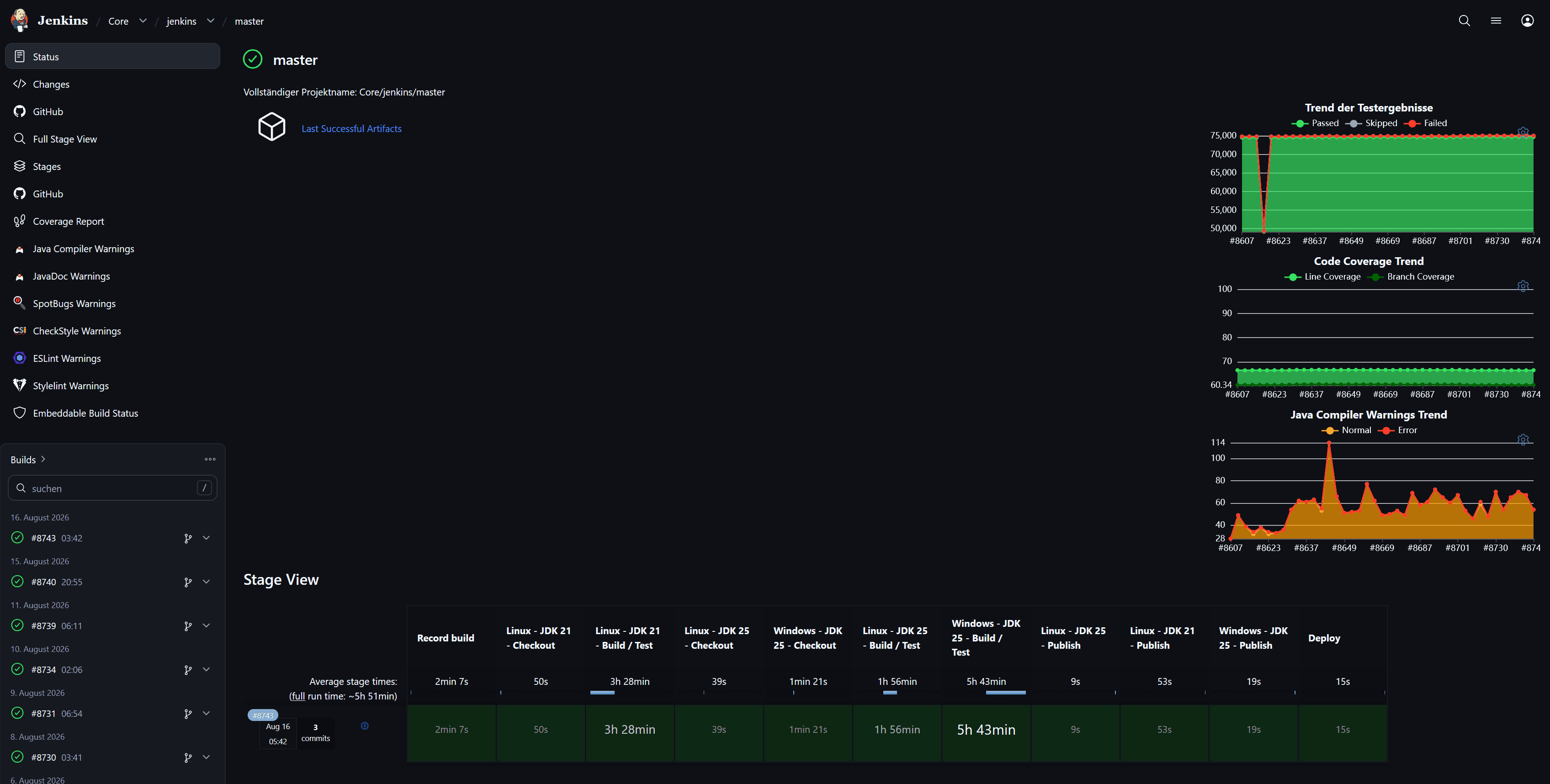
The Dark Theme Plugin provides a sleek, modern dark mode interface for Jenkins. Built on top of Jenkins' native theme engine and design system (based on CSS custom properties), it seamlessly transforms the default light background into a dark, high-contrast aesthetic designed. This reduces eye strain in low-light environments or simply during long monitoring sessions.
Whether you prefer a dark interface year-round or just want a cooler visual experience during late-night build debugging, this plugin delivers a polished UI out of the box.
But a picture tells more than a thousand words:
Key Highlights
1. System Preference Synchronization
The Dark Theme Plugin supports automatic theme switching by detecting your OS/browser preference (prefers-color-scheme). If your workstation switches to dark mode in the evening, Jenkins will follow automatically without the need for manual toggling.
How to Enable Dark Theme
Getting a cooler UI takes only a few seconds:
-
Navigate to Manage Jenkins → Plugins → Available Plugins.
-
Search for Dark Theme (dark-theme) and install it.
-
Go to Manage Jenkins → Appearance (or open your user profile under User → Appearance).
-
Select Dark from the list of available themes, or choose System default to match your system settings.
-
Save your preferences!
Not a Fan of Dark Mode? Explore Other Themes!
If dark mode isn’t your style, but you are bored with the standard Jenkins look, don’t worry! The Jenkins UI extension ecosystem offers a variety of alternative themes to refresh your dashboard.
Check out the Jenkins Theme Plugins Index to explore all available options.
For instance, if you want soothing pastel palettes instead of stark high contrast, the community has shown great interest in the Catppuccin Theme Plugin.
About the author
I started contributing regularly in 2019, with a focus on improving quality. I’m also keeping up with some older plugins that are still really popular, like the Thin Backup Plugin and the Job Configuration History Plugin. The community helped me to bring these back up to standard and I learned a lot along the way. Furthermore, I use these lessons to make regular improvements to the developer documentation.
In my day job, I’m a solution architect in a central team that provides Jenkins and DevOps consulting within a big automotive and industrial company.